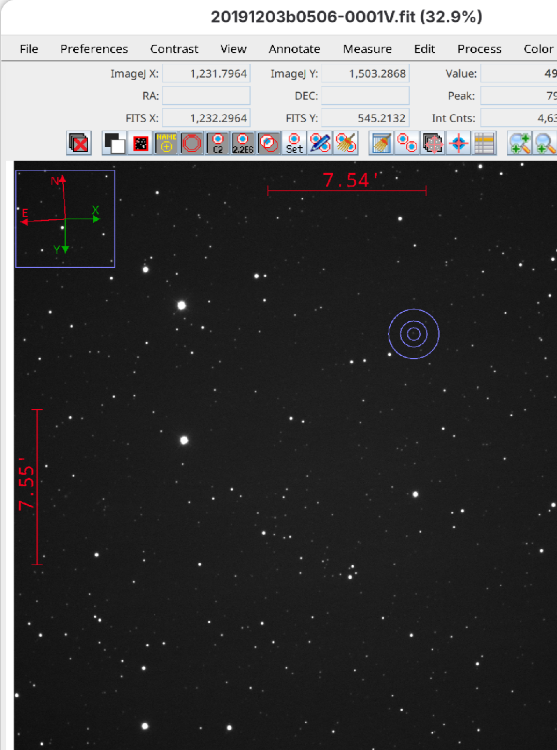
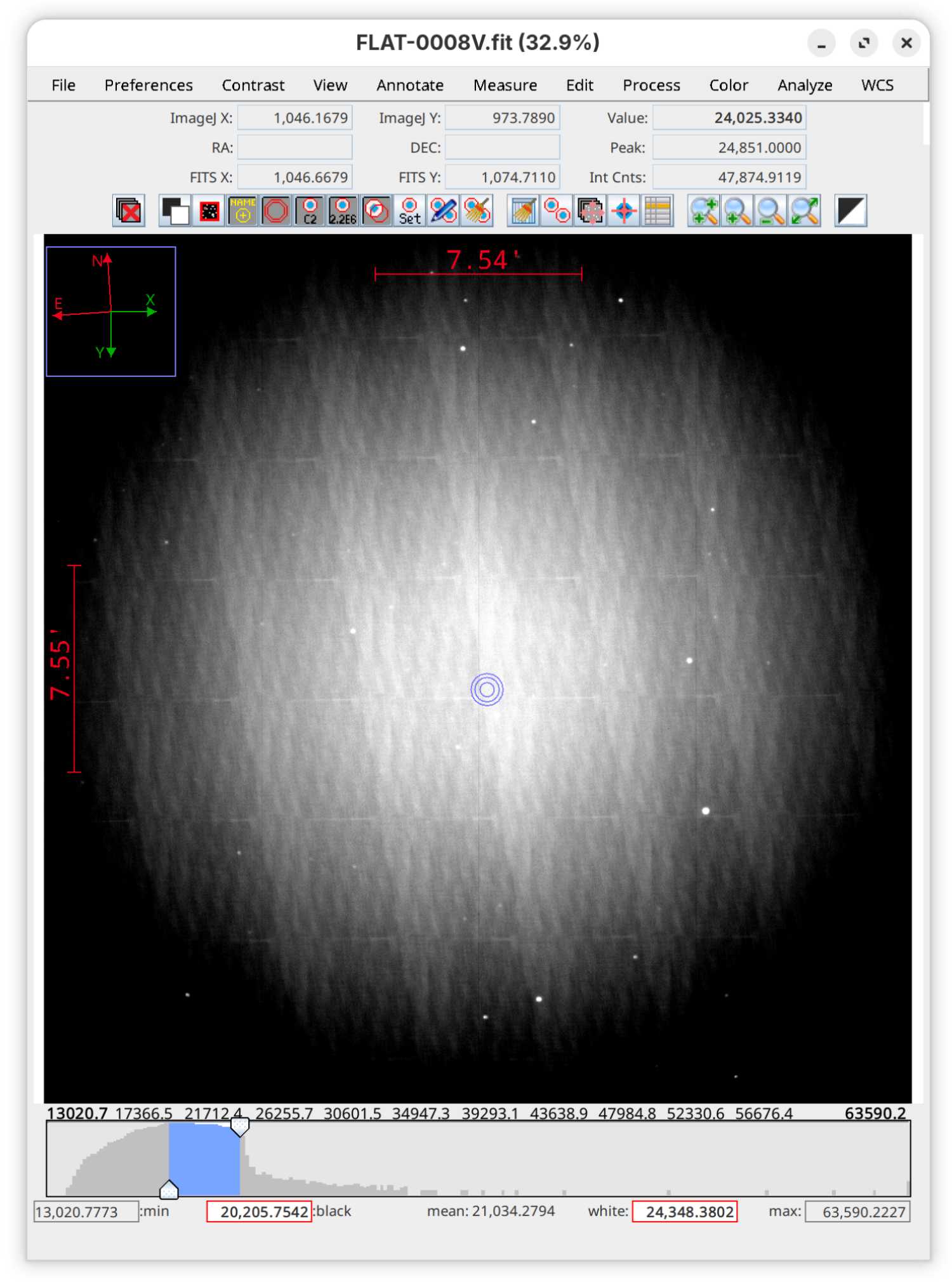
Hi, I updated my linux system into Fedora 44 (Workstation Edition Prerelease) recently. Then I found this app window to be very tiny. I set the GUI scale as 2.2 or 2.5 and got a relatively normal size of the main window. But the Data Processor and Coordinate Converter windows are still very tiny. What can I do to get the windows with normal sizes?
Can you confirm that you have system/OS display scaling set to something other than 1.0?
Apparently Fedora 44 has switched from X11 display interface to Wayland display interface. After searching for Fedora 44 Java scaling problems, it appears that there is either a bug in Wayland or a bug in Java. Fixes to either of those is out of our control. The bug is already reported within the Java development team, but there is no scheduled fix at the time of this response. I don't know if that is because it has not be prioritized, there is no solution identified yet, or if Java developers believe the problem could be on the Wayland side.
1) The built in ImageJ scaling does not work reliably for AstroImageJ (as you have found), so we need to reset it to the default. Go to AIJ Toolbar > Edit > Options > Appearance and set "GUI scale" to 1.0. You probably want to make sure "Menu font size" is set to 14 points also.
2) Close AIJ and reboot or power cycle your computer.
3) Check to see if the following file exists on your computer:
~/.local/astroimagej/AstroImageJ_Overlay.cfg
4) If the files does exist (if not jump to step 5), use your favorite text editor and open it. Go to the last line in the file and press enter to create a new line at the bottom. Copy and paste the following text into the new last line of the file:
java-options=-Dsun.java2d.uiScale=1.5
It is somewhat unintuitive the way the scaling works, but a uiScale of 1.5 doubles the size of windows, 2.5 triples the size. The value can be in the range 0.5 to 3.0. A value of 1.0 should return to the unscaled window display size.
5) If the file in step 3 does not already exist, then create a new text file with that name in that location. Open the file using your favorite text editor. Add the following two lines:
See the scaling settings listed in step 4 if you want a size different than 2x.
6) Save the text file to disk.
7) Start AIJ and it should be using the new scaling for all AIJ windows.
- The only limitation we have noticed is that the window names in the window title (above the window) may not be scaled. That information is usually not important.
We hope that some time in the future the problem will be fixed in Java or Fedora.
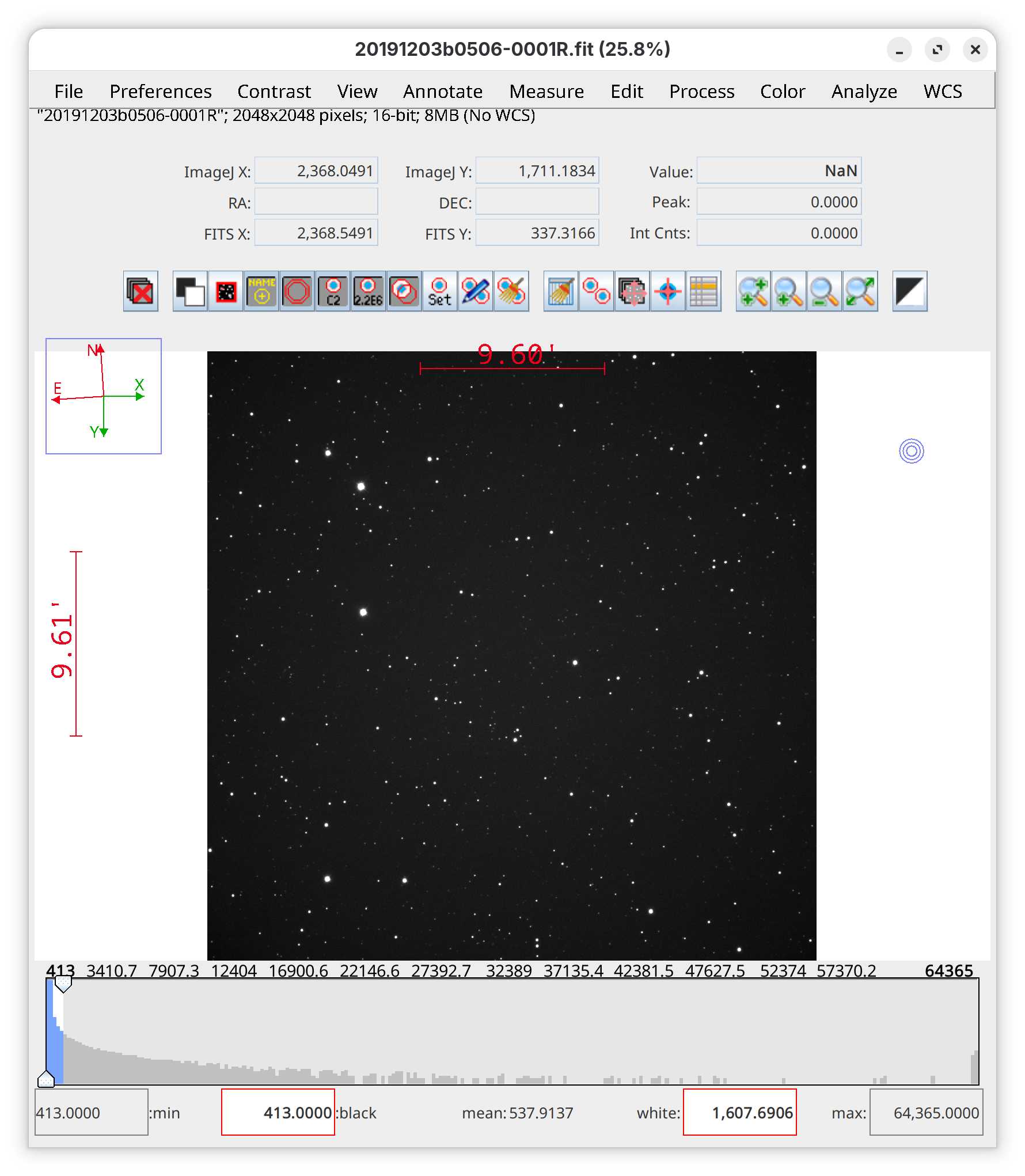
One more problem. When displaying an image, there is no white horizontal bar (under the pull-down menu texts) showing the file name and basic information. So the file names are invisible when in image sequence mode. Also there are some extra space at the bottom of the display window. These are shown in the attached figure.
Thank you for the report. The bottom of the image does not appear in the posted image below, so we can't see that artifact. If it will not post properly, please send to my email address posted on the main forum page. I assume you still have the scaling option set in the config file. If so, could you comment it out temporarily and restart AIJ to see if the image display problems persist when unscaled (maybe using some high magnification glasses or similar if needed to see the small windows)? We need to know if the problem is with the scaling, or yet another problem with Wayland compatibility.
Thank you for the additional testing. We've just pushed daily build 6.0.4.04. It may or may not fix the problem, but would you please update to it and see if the display of the stack information line returns?
I noticed the release of 6.0.5.00 and installed it. The display window is attached. The file name is visible now but there seems to be several extra vertical spacing.
Thanks for the report. We had to use a new display element to get it to work and we have some residual sizing problems, but your screen grab is very helpful in solving those. We may need you to test again after we’ve tweaked again.